Actors#
Actors: Building Blocks of Your World#
An actor is anything in your world that can move or be changed. It could be a character controlled by the player or an object like a wall or obstacle. In Miniworlds, every actor is an independent object that appears in the world and can interact with other objects.
Creating an Actor#
Let’s start by placing an actor in your world. We’ll first create a simple world with a background and place an actor in it:
import miniworlds

# Create a world with dimensions 600x300 pixels
world = miniworlds.World(600, 300)

# Add a background (for example, a grass image)
world.add_background("images/grass.png")

# Create an actor
actor = miniworlds.Actor((100, 40))  # Actor at position (100, 40)

# Start the world to display it
world.run()
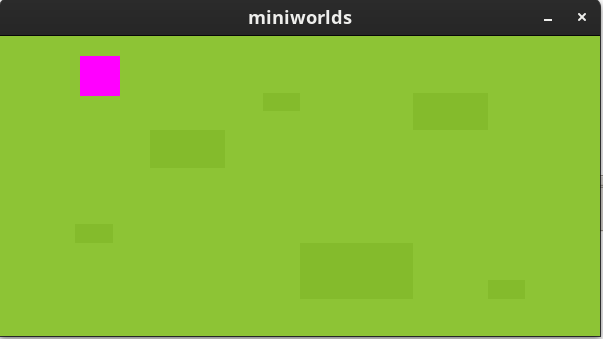
Output#
Explanation:#
We create an actor at position x=100, y=40. It is shown as a purple rectangle because it doesn’t have a costume yet.
Note that the origin of the coordinate system is at the top left.
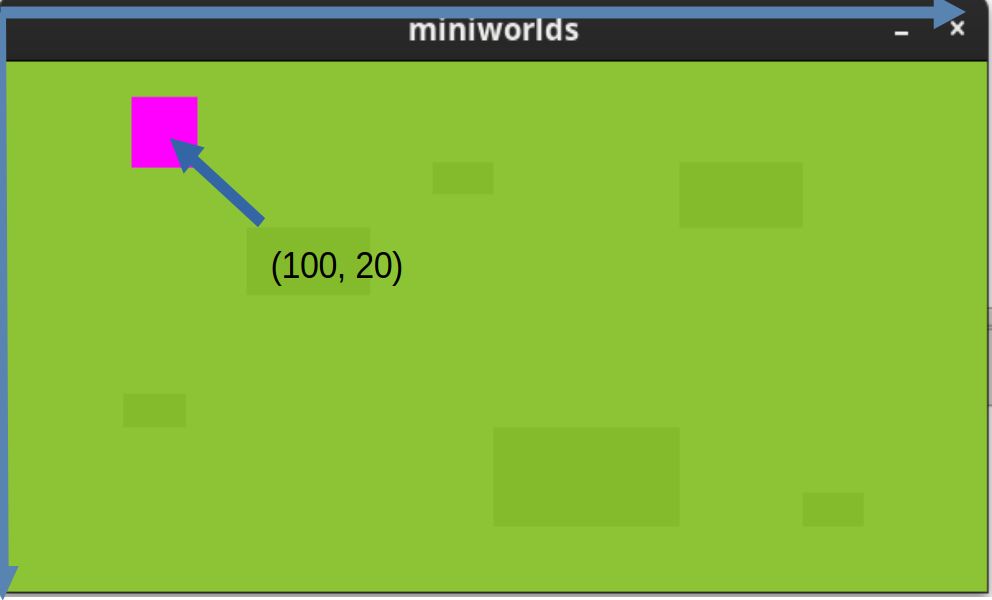
Example: Coordinate system#
The position (100, 20) refers to the center point of the actor.
Costumes#
Every actor in Miniworlds can wear a costume, which defines its visual appearance. A costume is simply an image assigned to the actor to give it a visual identity.
Step 1: Prepare Images#
Before you can add a costume to an actor, copy the image files into your project’s images folder.
A typical project structure might look like this:
project
│   my_world.py  # file with your Python code
└───images
    │   grass.png
    │   knight.png
    │   player.png
Step 2: Add a Costume#
Once your images are ready, you can assign a costume to your actor using the add_costume() method:
from miniworlds import World, Actor

# Create a world with dimensions 600x300
world = World(600, 300)

# Add a background
world.add_background("images/grass.png")

# Create an actor at position (100, 20) and add a costume
actor2 = Actor((100, 20))
actor2.add_costume("images/knight.png")  # "knight.png" as costume

# Start the world so the actors are visible
world.run()
Output:#
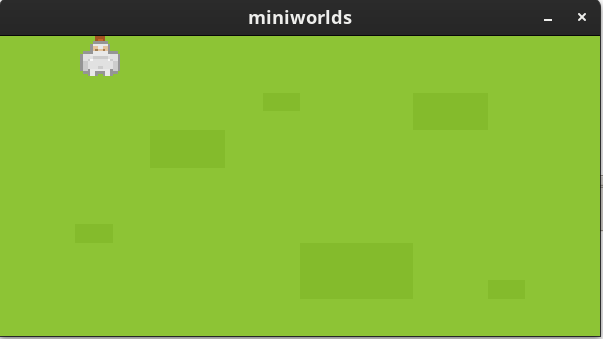
Output#
Explanation:#
After running the program, you’ll see an actor with the costume knight.png.
Bonus: Experiment with Your Own Costumes!#
Now that you know how to assign costumes, you can get creative:
Create your own images and save them in the
imagesfolder.Change the position and appearance of your actors.
For example, try creating an actor in a new position and give it a different image:
# Add a third actor and give it its own costume
actor3 = Actor((200, 150))
actor3.add_costume("images/cow.png")  # Costume: "cow.png"

# Start the world again
world.run()
Summary:#
Actors get a costume using the
add_costume()method.The images must be saved in the correct folder to be found.
You can place and customize as many actors as you like with different costumes.
FAQ
FAQ: Common Issues and Solutions
My actor is facing the wrong direction. What can I do?
If your actor is pointing in the wrong direction, here are two simple fixes:
Problem Description
Problem
from miniworlds import World, Actor

world = World()
world.add_background("images/grass.jpg")
player = Actor((90,90))
player.add_costume("images/player_orientation_top.png")
player.direction = "right"

world.run()

The image is oriented upwards. However, Miniworlds expects images to face to the right.#
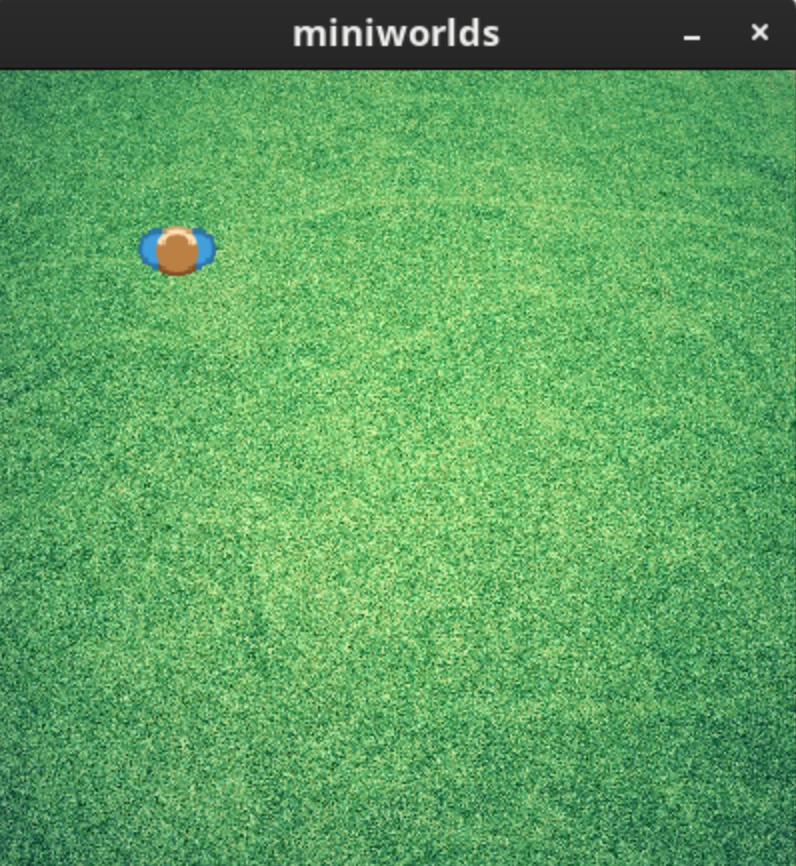
So in this example, the actor appears to be facing the wrong direction.#
Solution
Rotate the image: You can rotate the image using an image editor so that it faces the desired direction (usually rightwards).
Adjust orientation in code: Alternatively, you can rotate the costume directly in Miniworlds using the
orientationattribute:my_actor.costume.orientation = 90 # Rotates the costume by 90 degrees
You can also use other values like -90 or 180 to get the correct orientation, depending on how your image is designed.
The example above can be corrected like this:
from miniworlds import World, Actor

world = World()
world.add_background("images/grass.jpg")
player = Actor((90,90))
player.add_costume("images/player_orientation_top.png")
player.direction = "right"
player.costume.orientation = -90

world.run()
Explanation:
The image was rotated -90° to the left relative to the expected position. This correction makes the actor face the right direction in-game.
How do I prevent the costume from rotating with the actor?
If you want the costume to stay fixed and not rotate with the actor’s movement or orientation,
you can disable costume rotation by setting is_rotatable to False:
my_actor.costume.is_rotatable = False # Keeps costume fixed in one direction